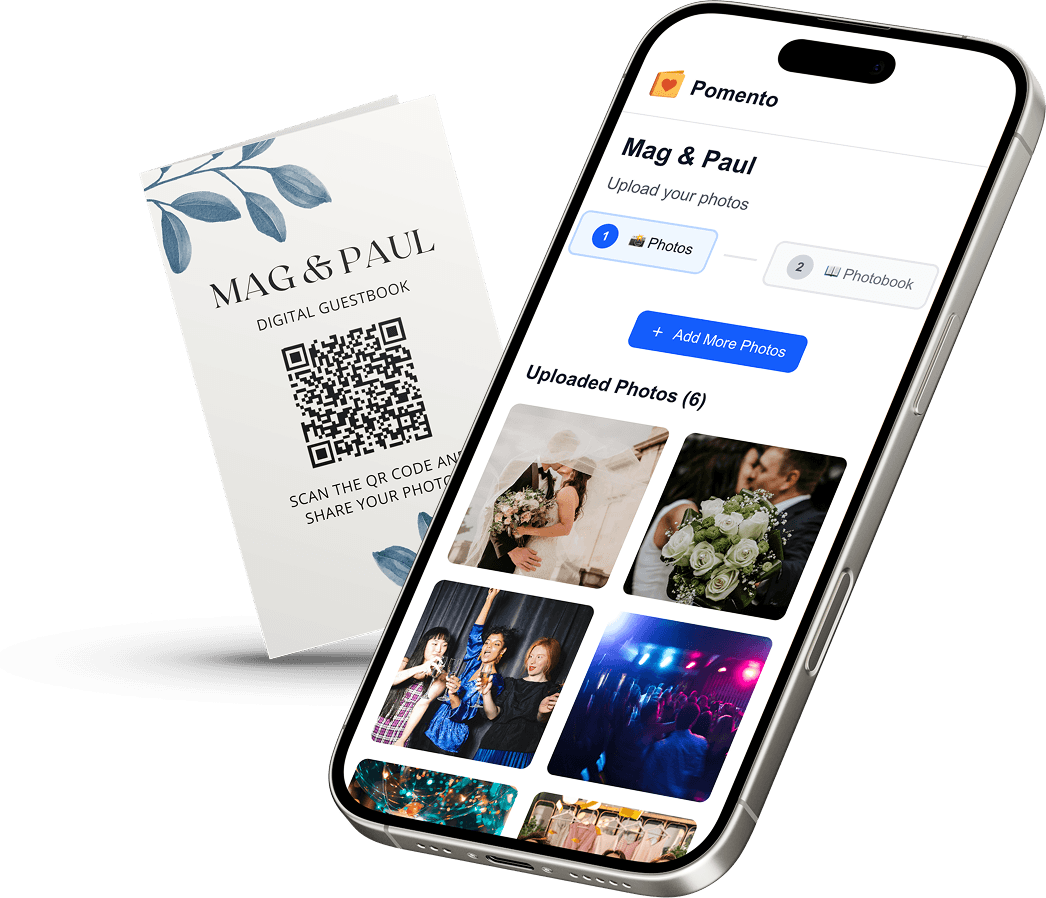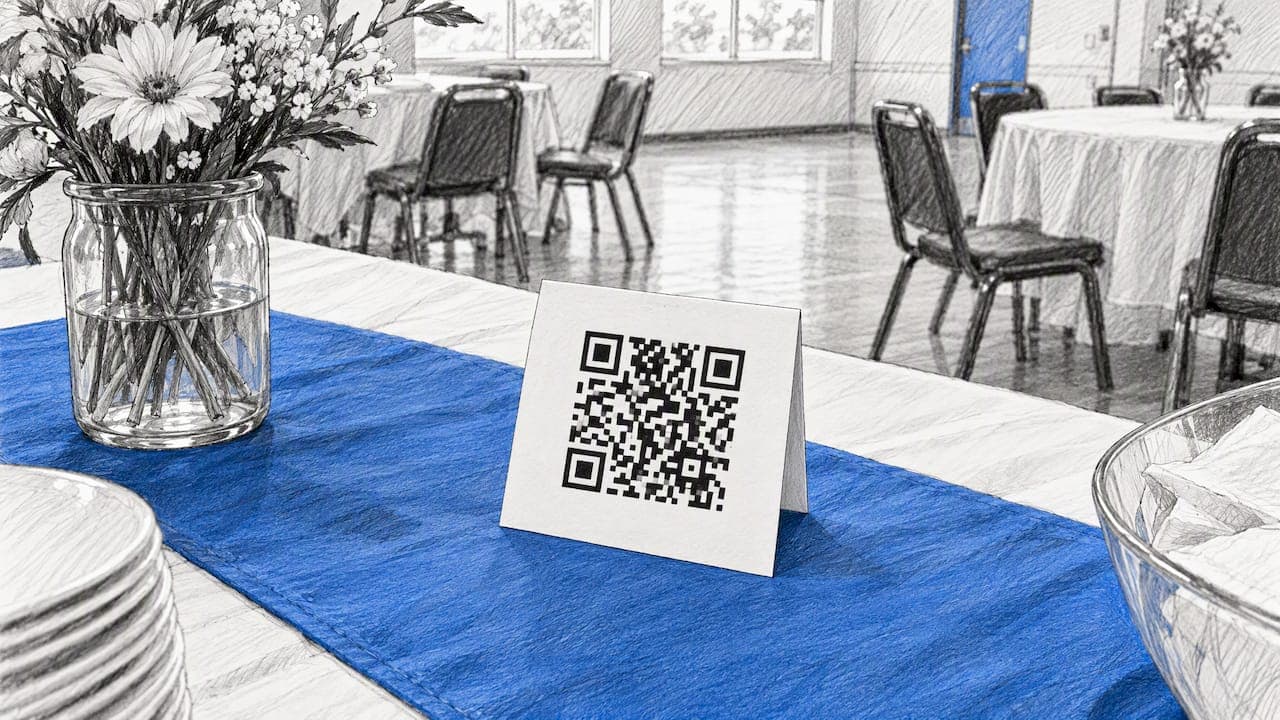
QR code photo sharing means putting one code on a table card, sign or screen. Guests scan it with their phone camera and upload photos straight to one shared place. You can build this with a shared cloud album and a free code generator. You can also use a dedicated event platform that collects the photos, organizes them and shows them on a live slideshow. This guide covers both routes: how to set up the code, how to make it scan reliably, how to keep the photos private, and how to turn the pile of uploads into something you will keep.
We built Pomento for the second route. Pomento is an all-in-one collaborative memory platform and digital guestbook for weddings, birthdays, baptisms, memorials, farewells and company events. The idea is simple: collect everyone’s memories in one place instead of scattered across phones and group chats, then turn them into a gift you can see, hear and hold.
Key Takeaways
- One QR code or link is all a guest needs. With the right tool there is no app to install and no account to create.
- A code that does not scan is the most common failure. Use high contrast, a clear border around the code, and a size that suits the viewing distance.
- A shared cloud album is the quickest free setup. A dedicated platform adds a live slideshow, organized media and a finished keepsake.
- Check privacy before the event: who can open the link, who can add photos, and how to switch sharing off afterward.
- Pomento turns guest uploads into a printed and digital photo book, a personalized song with a music video, and an event slideshow.
Table of Contents
- How QR code photo sharing works
- Two ways to set up a QR code for photo sharing
- Making the QR code scan every time
- Displaying photos on a live slideshow
- Keeping event photos private and accessible
- Sharing a large collection of photos: what to check
- From a pile of uploads to a keepsake
- Pomento pricing and how to start
- A simple plan for your event
- FAQ
- Sources
How QR code photo sharing works
The code is only a shortcut to a web address. Behind it sits an album, a gallery or an upload page. When a guest points a phone camera at the code, the phone offers to open the link. The guest then picks photos from the camera roll, or takes new ones, and uploads them.
What the guest sees after that scan decides whether people take part. Three things matter:
- No app. Anyone who has to download something at a reception will skip it.
- No sign-up. An account form is the second place people drop off.
- Any phone. Older relatives and guests with different devices should manage with the camera they already have.
With Pomento, guests need only one QR code or link to contribute. They install no app and create no account. They can upload photos, videos, written messages and voice messages from any phone or computer.
Two ways to set up a QR code for photo sharing
Option 1: A shared cloud album and a code generator
This is the do-it-yourself route, and it costs nothing if you already use a cloud photo service. Google Photos, for example, lets you share an album, and its help page notes that anyone who scans the album’s QR code can access the shared album in Google Photos. Google also describes QR codes for shared albums as a way for attendees to view or add photos directly.
The basic steps:
- Create an album for the event and turn on sharing.
- Copy the album link, or use the QR code the app provides.
- If you use a separate generator, paste the link in and download the code as an image.
- Test it on at least two phones, one iPhone and one Android.
- Print or display the code.
The trade-off is that guests often need to be signed in to that provider’s account to add photos, and the result is a folder of uploads with no structure. You still have to sort, pick and design everything afterward.
Option 2: A dedicated event platform
A purpose-built service gives you a guest-facing page instead of a folder. The best of these let people upload with no account, keep everything in one private place and show the photos on a screen. Pomento takes this one step further. Collecting is only the first of three steps:
- Collect memories. The host shares a single link or QR code. Guests upload photos, videos, written messages and voice messages.
- Design a page. Each guest creates their own photo book page with their photos, words and voice message, using ready-made templates in just a few taps.
- Receive the finished gift. Pomento brings all the pages together.
That means you do not need to lay anything out by hand. For a busy organizer, such as a maid of honor, a best man or a colleague gathering a farewell gift, that matters more than the QR code itself.
Making the QR code scan every time
A code that fails at the table defeats the whole plan. These are the common causes, and the fixes are cheap.
Contrast and color
Black code on a white background is the safest choice. One QR design guide recommends aiming for a contrast ratio of at least 4.5:1. Another points out that the 3:1 figure in the ISO standard is a technical minimum, and that indoor fluorescent lighting often causes failures at that lower level. Avoid pale colors on a patterned or photographic background, and avoid a code that is lighter than its background.

The quiet zone
Leave a blank border around the code, about four modules wide. Do not let a frame, a floral border or a line of text touch it. Wedding stationery is the usual culprit, so put the code on a clean white panel.
Size and distance
Print size depends on how far away people stand. A common rule of thumb is that for every 10 cm of scanning distance, the code should be 1 cm wider. One analysis suggests codes under 1 by 1 inch fail 42% more often than 2 by 2 inch codes. For a table card, aim for at least 2 inches square. For a welcome sign across a room, go much larger.

Test like a guest
Breaking one design rule can make some devices fail, and breaking two can make most devices fail. So test the printed copy, not the file on your laptop, and do it in the actual venue lighting. Try an older phone too.
Where to put it
- Table cards: one per table, at eye level when seated.
- Welcome sign: where guests wait in line.
- Bar or dessert table: people stand still there with their phones out.
- Invitation or program: this lets guests upload before the day, which suits a surprise gift.
- Screen or projector: show the code between slideshow cycles so late arrivals can join.
If you are also hiring a 360 photo booth rental for a party, put the code next to the booth so people can add their own phone shots alongside the booth clips.
Displaying photos on a live slideshow
Guests enjoy seeing their uploads appear, and it nudges those who have not scanned yet. The setup is the same whichever tool you use:
- Choose a screen or projector near the dance floor, bar or lounge area, not behind the head table where nobody looks.
- Open the slideshow link on a laptop or streaming device connected to the screen.
- Switch off sleep mode and screen savers on that device.
- Check the venue’s Wi-Fi or use a mobile hotspot, because uploads and the slideshow both need a connection.
- Do a ten-minute test before guests arrive, by uploading from your own phone.
Pomento includes a live Event Slideshow for screens and projectors at the celebration. That makes it work in two ways. It is a shared surprise gift before the event, and a live guestbook during the celebration.
Keeping event photos private and accessible
Privacy is a real question when a link can be forwarded. Before the event, decide three things.
- Who can see the album? Anyone with the link, or only people you invite?
- Who can add to it? Open contribution is easier for guests, but you should know who can upload.
- How do you shut it down? With a shared cloud album, the owner can turn link sharing on or off and remove collaborators. Removing a collaborator also removes that person’s photos and comments, so download what you want to keep first.
A few habits help whichever tool you pick:
- Share the code only at the event and on invitations meant for guests, not on public social posts.
- Tell guests what the photos are for. A line on the card such as “Scan to add your photos to the book” sets expectations.
- Download the originals to your own storage when the event is over. Pomento provides downloads of all original photos, videos and voice messages.
- For a funeral or memorial, think about who might not want their photo shared widely, and agree on the audience with close family.
Sharing a large collection of photos: what to check
A wedding or party can produce hundreds of photos and videos, and video files are large. Whatever you use, check these points before you rely on it:
| Question | Why it matters |
|---|---|
| Are photos kept at original quality? | Compressed uploads look poor in print. |
| Is there an upload limit per guest or per album? | Videos can hit a cap quickly. |
| How long does the album stay available? | You may want to open it a year later. |
| Can you download everything at once? | Saving files one by one is slow. |
| Is it a one-time payment or a subscription? | A recurring fee can run for years after the event. |
If you want to send photos to just one person, a messaging app or a direct link is fine. For a large group, a shared album or an event page works better, because everyone adds to the same place.
From a pile of uploads to a keepsake
Most guides stop at the collecting stage. The harder part is what comes next: hundreds of unsorted images in a shared folder tend to stay there. Pomento is designed to turn those contributions into a finished gift, not just a file download:
- A Printed and Digital Photo Book. An interactive digital book to share online, plus a high-quality printed hardcover book shipped to your door.
- A Personalized Song with a Music Video. A song made for your occasion from guests’ words, with a music video created from your photos.
- An Event Slideshow. For screens and projectors at the celebration.
- Downloads of all original photos, videos and voice messages.
Here is how that looks for different occasions:
- Weddings. Bridal parties can collect messages before the day as a surprise, then run the code at the reception. See our wedding guestbook page, and our guide to a wedding guest book with photos for more ways to do it.
- Birthdays. For milestone birthdays such as a 40th or 60th, friends and family can each add a page, with voice messages that are lovely to replay. Take a look at our birthday guestbook.
- Baptisms. Parents, godparents and grandparents can preserve wishes and blessings in one book. Our baptism page shows how.
- Memorials and funerals. Distant relatives can share condolences and stories without installing anything, and the family receives a book and slideshow for the service. See our memorial guestbook.
- Graduations. Relatives leave advice and congratulations for the graduate. Our graduation photo book guide has layout and message ideas.
- Company events and farewells. Teams can gather photos from a summer party, holiday party or retreat, or a retirement gift for a colleague.
You can browse more on our occasions page.
Pomento pricing and how to start
Pomento is a one-time payment with no subscription. There are two options: the Digital Experience at $48, and the Digital + Printed Book at $87. There is no free trial, but every purchase comes with a 14-day money-back guarantee.

Want to see the result first? Preview a real Example Photo Book on Pomento, then start your own project. Share one QR code or link, and your guests can contribute from any phone or computer, with no app and no sign-up.
A simple plan for your event
- Two to four weeks before: create the project and share the link with the people who will help, especially if it is a surprise gift.
- One week before: print the QR cards, with a clear border and a white background, and test them on two phones.
- On the day: place codes at tables and the entrance, and start the slideshow where guests can see it.
- The next day: send a thank-you with the link so those who missed the code can still add photos.
- After: review the pages, order the book, and download the originals for your own backup.
FAQ
Can I create a QR code to share pictures?
Yes. Most cloud photo services let you share an album and generate a QR code for it, and Google Photos is one example. A dedicated event platform creates the code for you and adds a guest upload page, a slideshow and organized media.
Do guests need to download an app or sign up?
It depends on the tool. With Pomento, guests need only one QR code or link, with no app installation and no sign-up. They upload photos, videos, written messages and voice messages from any phone or computer.
Can I display guest photos on a live slideshow?
Yes, if your tool supports it. Open the slideshow link on a laptop connected to a screen or projector, make sure the venue has a stable connection, and test it before guests arrive. Pomento includes a live Event Slideshow for this.
What is the best way to share a lot of photos with a group?
Use one shared album or event page that everyone can add to, rather than sending files through chats. Check original-quality uploads, storage limits, how long the album stays online, and whether you can download everything in one go.
Sources
- Google Photos celebrates 10 years with 10 tips
- Share photos and videos, Google Photos Help
- How shared album controls give your photos more privacy
- QR Code Design Rules: 7 Specs for Scannability
- Small QR Code Generator guide
- QR code not scanning? Six fixes
- How QR Code Scanners Work
- 360 photo booth rental, Party Perfect America