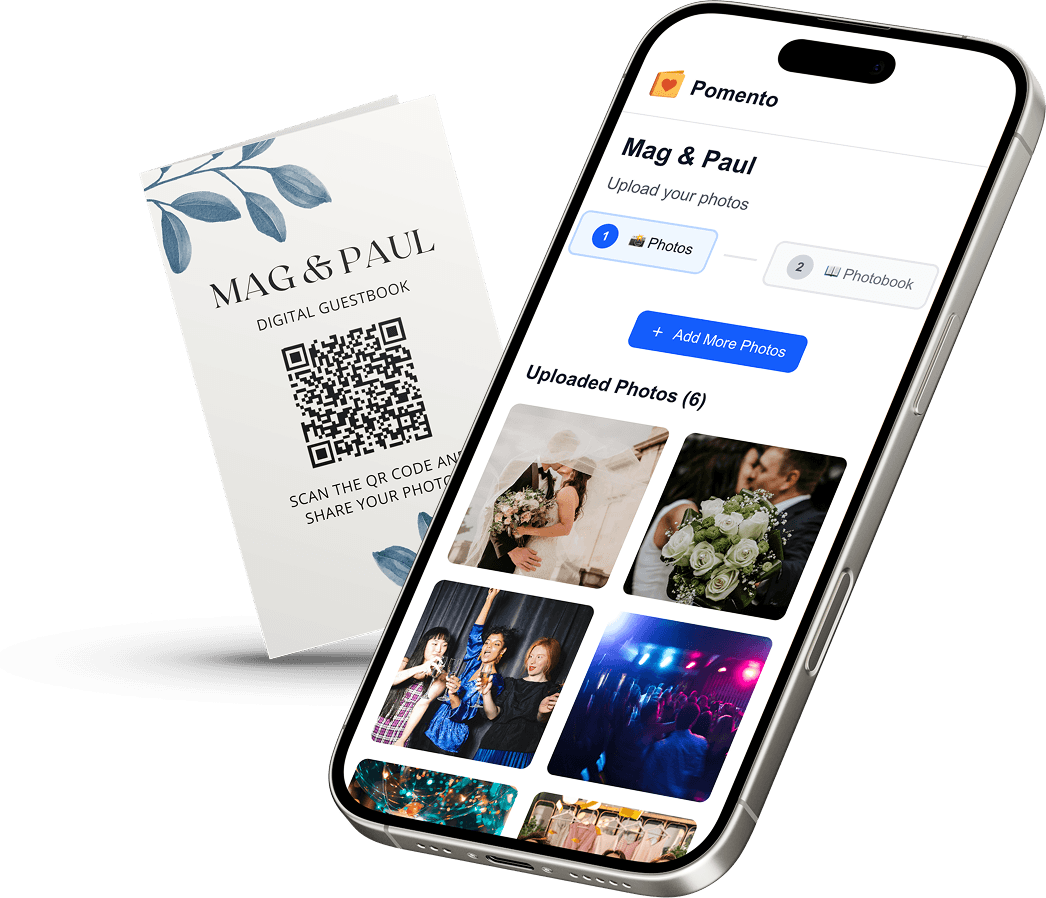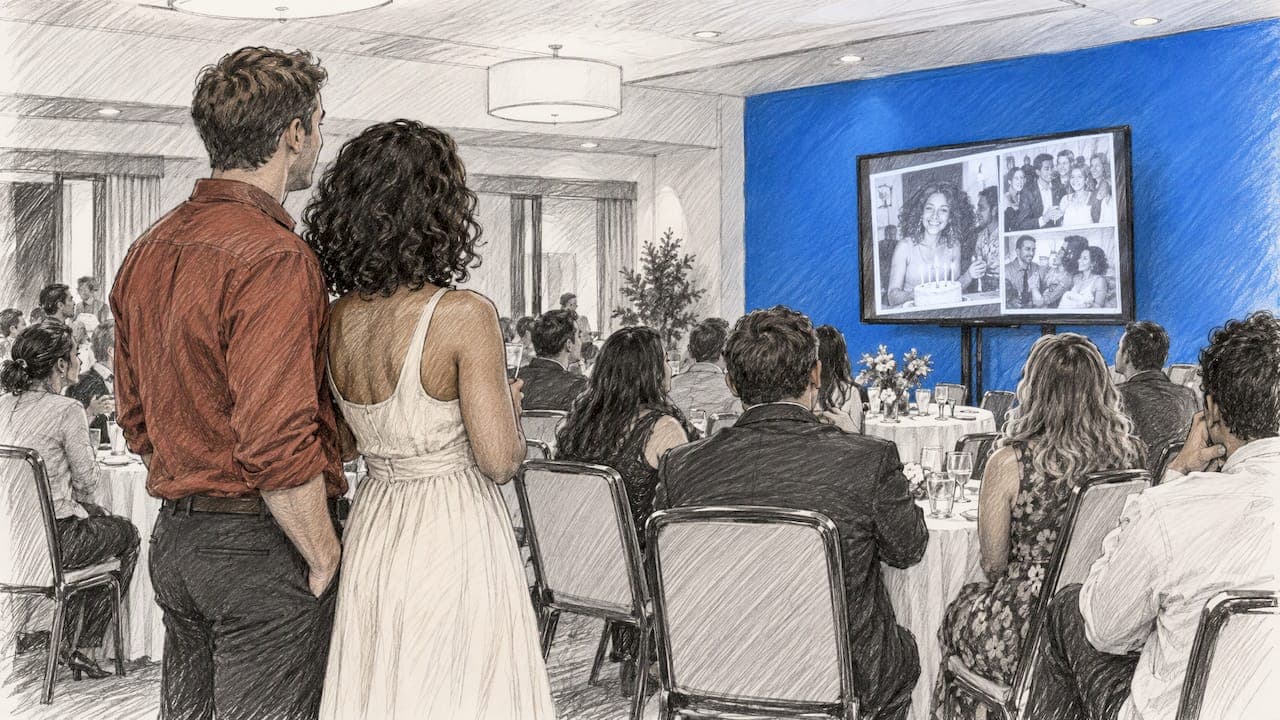
A live event photo slideshow shows photos from your guests on a TV, screen or projector while the party is still going. Guests scan a QR code, upload shots from their own phones, and the images appear on the big screen within moments. You need one screen, a stable internet connection, a link or QR code, and about an hour of preparation before doors open.
This guide explains how it works, what to prepare, how to test it, how to keep it respectful of your guests, and what to do when something stalls mid-celebration. We also show how Pomento, an all-in-one collaborative memory platform and digital guestbook for weddings, birthdays, baptisms, memorials, farewells and company events, fits in.
Key Takeaways
- A live slideshow needs three things: a way for guests to upload (a QR code or link), a screen or projector, and a reliable internet connection at the venue.
- Guests should not have to install an app or create an account. One scan and they are uploading.
- Test everything at the venue, on the real screen, with at least two phones, before the first guest arrives.
- Decide in advance who watches the feed, so an unflattering or unwanted photo can be removed quickly.
- The best slideshows do not end at midnight. The same photos, videos and messages can become a photo book, a song and a keepsake.
Table of Contents
- What a Live Event Photo Slideshow Is
- How Guests Add Photos in Real Time
- What Equipment and Connection You Need
- How to Set Up and Test a Live Slideshow
- Moderation, Privacy and Consent
- What to Do When Something Goes Wrong
- Beyond the Slideshow: Turn the Night Into a Keepsake
- Pomento for Your Event
- A Simple Timeline for the Day
- Make the Slideshow Look Good
- Choosing Between a Live Slideshow and a Photographer’s Gallery
- FAQ
- Sources
What a Live Event Photo Slideshow Is
A live event photo slideshow is a looping display of pictures that guests contribute during the event itself. Instead of waiting days for a photographer’s gallery, or chasing friends for the pictures buried in their camera rolls, the room sees the evening unfold in real time.
It differs from the classic slideshow in one way: the content is not fixed. A traditional slideshow is a deck of photos you assemble beforehand, such as a baby-to-adult retrospective at a milestone birthday. A live slideshow keeps growing. New uploads join the rotation, so the person who snapped the cake cutting at 8:15 can watch it appear on screen at 8:17.
Most events use a mix of both. Before the party, the host or a small group prepares the “story so far” photos. During the party, guests add the present moment. Both can run in the same loop on the same screen.
Where it works best
A live slideshow suits any gathering where people are already holding their phones:
- Wedding receptions, where the dance floor, cocktail hour and tables all produce different angles the photographer cannot cover at once. See our wedding guestbook options for ideas.
- Milestone birthdays, where guests bring old photos and new ones. Our birthday page covers that approach.
- Baptisms and christenings, where relatives from several households want to share blessings and snapshots in one place. See our baptism page.
- Memorial services and celebrations of life, where a quiet, respectful slideshow of photos and stories can play before and after the service. See our memorial page.
- Company parties, retreats, anniversaries and farewells, where teams want shared memories without anyone installing yet another tool.
If your occasion is not on that list, our occasions overview shows how the same idea adapts.
How Guests Add Photos in Real Time
The simplest guest experience has four moves: see the QR code, scan it with the phone camera, pick or take photos, and tap upload. No download, no password.

That simplicity decides whether your slideshow is full or empty. Every extra step, such as an app store visit, an email confirmation or a username, loses a share of your guests, and the people you lose are often the older relatives whose photos you most want. Pomento is built around this: guests only need one QR code or link, no app installation, and no sign-up. They can upload photos, videos, written messages and voice messages from any phone or computer.
For a deeper look at the mechanics, read our guide to QR code photo sharing.
Where to put the QR code
Placement matters more than most hosts expect. A single tiny code on the welcome table will be scanned by the first ten guests and forgotten by everyone else. Try these spots:
- The welcome sign or entrance. People scan while they are still holding their phones and before the drinks arrive.
- Each table. A small card or stand with the code and one line of instruction: “Scan to add your photos to the big screen.”
- Next to the screen itself. When guests see their photo appear, they want to know how it happened.
- The invitation or a message to the group. A link sent ahead lets people upload old photos before the event, so the slideshow is not empty at the start.
- The bar and the photo corner. These are where phones come out.
An emcee or best man can also announce it once during dinner. One sentence, repeated once an hour, is enough.
Share it before the day
The link does not have to wait for the party. Because Pomento works as a shared surprise gift before the event and as a live guestbook during the celebration, friends and family can upload throughout the weeks leading up. Guests send childhood pictures, short videos and heartfelt messages in advance. On the night, the screen already has material, and the guest of honor sees the collected love of their circle.
What Equipment and Connection You Need
You need less than you think. The core kit:
| Item | What it does | Notes |
|---|---|---|
| TV, monitor or projector | Shows the slideshow | A TV is simplest. A projector suits larger rooms but needs dimmer lighting. |
| Laptop or streaming device | Runs the slideshow in a browser | A laptop with an HDMI port is the most predictable option. |
| HDMI cable (and adapter if needed) | Connects the laptop to the screen | Bring a spare cable. Many modern laptops need a USB-C adapter. |
| Power for everything | Keeps the screen on all evening | Plug in the laptop. Do not rely on battery. |
| Internet connection | Brings new uploads to the screen | Venue Wi-Fi or a phone hotspot as backup. |
| QR code signs | Invites guests to upload | Printed at a readable size. |
How much internet do you need?
Two separate connections matter. The first is the screen’s: it only needs to fetch new photos and display them, so a modest connection is enough. The second is the guests’: photos from modern phones are large, and fifty people uploading at once in a rural barn with one weak signal will struggle.
If the venue has public Wi-Fi, ask the manager whether it is open to guests and whether there is a password you can print. If cell coverage is good, guests can use mobile data, which means the screen device is the only one that really needs a stable connection. Many hosts run the screen laptop on the venue’s wired or best Wi-Fi connection and keep a phone hotspot ready as a fallback.
Ask the venue three questions before you commit:
- Is there a screen or projector, and what inputs does it have?
- Is there Wi-Fi, and how well does it handle a crowd?
- Where is the nearest power outlet to the screen position?
Choosing the screen
Put the screen where people pass but do not have to crowd: near the bar, the entrance to the dance floor, or the dessert table. Avoid positioning it directly beside the speakers, where people stand and chat with their backs to it, and avoid placing it opposite a bright window.
For a dinner, a screen behind the head table can look beautiful but forces guests to turn around. Side walls often work better.
How to Set Up and Test a Live Slideshow
Build your setup in two stages: at home, then at the venue.
Step 1: Prepare the content at home
- Create your event page and generate the QR code and link.
- Upload a starter set: ten to thirty photos of the guest of honor or the couple across the years.
- Share the link with a core group so early uploads arrive in the days before.
- Print your signs. Check the QR code by scanning the printed version, not the screen version.
Step 2: Test at the venue
Arrive early. If the venue allows access the day before, even better. Then:
- Connect the laptop to the screen and set the display to “extend” or “mirror” depending on how you plan to run it.
- Open the slideshow in full screen mode and check that it fills the whole display without black bars or cut-off edges.
- Check the sound if videos or voice messages will play. Decide whether sound is on during the party or only during planned moments.
- Ask two people to scan the QR code with different phones (one iPhone, one Android) and upload a photo each. Time how long it takes to show up.
- Turn off the laptop’s sleep and screen saver settings so the display never goes dark.
- Silence notifications on the laptop so a private message does not appear on a 65-inch screen.
- Confirm you can regain control quickly: where the laptop sits, who can reach it, who has the password.
Step 3: Assign a slideshow captain
Pick one person, not the host, to keep an eye on the feed. This might be a cousin, a friend, or the venue’s coordinator. Their jobs are to refresh the display if it freezes, remove any photo the host would not want shown, and remind guests about the QR code mid-evening.
Moderation, Privacy and Consent
A live screen is a public screen, at least within the room. That deserves a little thought.
Decide what belongs on screen. Some hosts want everything. Others prefer approval before anything is shown. If the guest list includes children, colleagues or a mix of generations, approval-first is worth considering, and a captain can handle it.
Tell guests what is happening. A short line on the sign, such as “Photos you upload may be shown on the screen tonight,” sets expectations. For company events, mention it in the invitation as well.
Respect people who prefer not to be photographed. At memorials in particular, mourners may not want their faces on a screen. A good approach is to make the slideshow about photos of the person being remembered, and to let guests who prefer not to share simply not scan.
Know the rules where you are. Privacy law varies by country. In Europe, the GDPR treats certain kinds of processing, such as facial recognition that identifies individuals, with extra care, and consent matters. If your event is in the European Union, or your guests are, check which features a tool uses and consult official guidance. In the United States, there is no single national rule for guest photos at a private party, but the practical standard is the same: be open about what you are doing, and take a photo down when someone asks.
Keep the originals safe. After the event, you will want the full-quality photos, videos and voice messages. Pomento gives you downloads of all original files, so the slideshow is a display, not the only copy.

What to Do When Something Goes Wrong
Most problems come from three places: the connection, the display, or the guests’ phones.
Photos are not uploading
- Check the guest’s connection first. Ask them to switch between Wi-Fi and mobile data. Venue Wi-Fi that needs a login page often blocks uploads until the guest accepts the terms.
- Try a smaller batch. Dozens of large photos at once can stall on a weak signal. Uploading five at a time works better.
- Try a different browser. Opening the link in the phone’s default browser, rather than inside a messaging app, often helps.
- Reload the QR link. If the page seems stuck, close it and scan again.
The slideshow is not showing new photos
- Check the laptop’s connection. If it dropped off Wi-Fi, reconnect, or switch to the phone hotspot.
- Refresh the page. A browser refresh restores a stalled feed in most cases.
- Confirm the upload arrived. Open the event on a phone to see whether the photo is in the collection. If it is there but not on screen, the display needs refreshing. If it is not there, the problem is the upload.
- Check any approval setting. If you set photos to need approval, nothing appears until someone approves it.
The screen goes dark or the picture is wrong
- Wake the laptop and disable sleep mode.
- Reseat the HDMI cable at both ends.
- Choose the correct input on the TV with its remote. Keep the remote with the captain.
- If the picture is cropped, change the display scaling or the TV’s picture size to “full” or “just scan.”
Nobody is uploading
This is a people problem, not a tech one. Move a sign to eye level, ask the emcee for a one-line announcement, and seed the screen with a few fun photos. When the first guest sees their own face on a big screen, the rest follow.
Beyond the Slideshow: Turn the Night Into a Keepsake
A slideshow is wonderful for a few hours, then the screen goes dark. The photos, videos and messages that guests shared deserve a longer life.
Pomento is an all-in-one collaborative memory platform and digital guestbook. The idea is to collect everyone’s memories in one place instead of scattered across phones and group chats, and turn them into a gift you can see, hear and hold. Here is how it works:
- Collect memories. The host shares a single link or QR code. Guests upload photos, videos, written messages and voice messages from any phone or computer. No app, no account.
- Design a page. Each guest creates their own photo book page with their photos, words and voice message, using ready-made templates in just a few taps.
- Receive the finished gift. Pomento brings the pages together.
What you receive is more than a file download:
- A Printed and Digital Photo Book: an interactive digital book to share online and a high-quality printed hardcover book shipped to your door.
- A Personalized Song with its own Music Video: a song made for your occasion from guests’ words, with a music video built from your photos.
- A live Event Slideshow for screens and projectors at the celebration.
- Downloads of all original photos, videos and voice messages.
For weddings, our guide to a wedding guest book with photos shows six ways to do it well. For milestone birthdays, see our birthday photo book ideas and layouts.
Pomento for Your Event
If you want the live slideshow and the lasting keepsake from the same set of contributions, Pomento covers both. Pricing is a one-time payment with no subscription. The Digital Experience is $48, and the Digital + Printed Book is $87. There is no free trial, but every purchase comes with a 14-day money-back guarantee.

The easiest way to see what the result looks like is to preview a real Example Photo Book on Pomento, then start your own project when you are ready. Guests only need a link or QR code, and the live slideshow, the book and the song all come from what they share.
A Simple Timeline for the Day
If you like a checklist, here is a pattern that works for most events.
Two to four weeks before
- Create the event and share the link with close family and friends.
- Ask for old photos and short voice messages.
- Confirm the screen, input type, Wi-Fi and power with the venue.
One week before
- Print the QR signs and a few spare copies.
- Pack the laptop, charger, HDMI cable, adapter and hotspot details.
- Brief your slideshow captain.
On the day, two hours before guests arrive
- Set up the screen and test with two phones.
- Disable sleep and notifications.
- Place the signs at the entrance, tables and bar.
During the event
- Announce the QR code once at dinner and once later.
- Keep an eye on the screen and the feed.
- Take a quick photo of the screen when a favorite moment appears.
After the event
- Download the originals.
- Review the collected pages and finish your book.
- Share the digital version with everyone who contributed.
Make the Slideshow Look Good
A few small choices make a screen feel intentional rather than improvised.
- Mix orientations. Vertical phone photos on a wide screen leave blank sides. A slideshow that fits both smoothly looks more polished than one that crops faces.
- Keep the pace comfortable. Each photo should stay on screen long enough to recognize people, usually a few seconds, but not so long that the room loses interest.
- Seed the opening. An empty screen at the start looks like a failure. Preloaded photos give guests something to look at and a reason to add their own.
- Think about sound. Music from the DJ or band usually wins over slideshow audio. Save voice messages for a quiet moment, such as the toast, or for the finished book where they are heard in full.
- Mind the light. Projectors fade in bright rooms. If the room cannot be dimmed, use a TV.
Choosing Between a Live Slideshow and a Photographer’s Gallery
They do different jobs, and the strongest events have both. A professional photographer gives you carefully composed portraits. Guests give you the unguarded angles: the grandmother laughing at table six, the friends mid-dance, the children under the tablecloth. A live slideshow shows the room those moments while they are still fresh, and it makes guests feel like part of the storytelling rather than an audience.
FAQ
Do guests need to download an app to add photos to a live slideshow?
Not with Pomento. Guests only need one QR code or link, with no app installation and no sign-up. They upload photos, videos, written messages and voice messages from any phone or computer.
What do I need to show a live slideshow at my event?
You need a TV, monitor or projector, a laptop or streaming device to run it, an HDMI cable, power, and a stable internet connection. Bring a backup cable and a phone hotspot, and test everything at the venue with two different phones before guests arrive.
What if the venue Wi-Fi is weak?
Run the screen device on the best connection available, such as a wired link or a phone hotspot. Guests can often use their own mobile data to upload. Encourage people to send photos in small batches if the signal is slow.
Can I remove a photo from the slideshow?
Yes, the practical answer is to assign a slideshow captain who watches the feed and takes down anything the host would not want displayed. For events with children, colleagues or sensitive occasions, tell guests that uploads may appear on screen and decide beforehand whether to approve photos first.
Can the photos become something lasting afterward?
Yes. With Pomento, the contributions become an interactive digital photo book, a printed hardcover book, a personalized song with a music video, and downloadable originals, all from the same guest uploads.
Sources
- QR Code Photo Sharing: How to Collect Every Guest’s Photos | Pomento Blog
- Wedding Guest Book With Photos: 6 Ways to Do It Right | Pomento Blog
- Birthday Photo Book: Ideas, Page Layouts and How to Make One Together | Pomento Blog